 Anki Guide
Part 1 — Getting Set Up & Your First Cards
This section takes you from a fresh install to a working vocabulary deck with your own custom note type. By the end you'll have a properly configured Anki setup and a clear mental model of how the whole system fits together.
1. Why Anki Works
Anki is a flashcard app built around spaced repetition — a memorisation technique that exploits two well-documented principles of memory science.
The first is the forgetting curve , described by Hermann Ebbinghaus in the 1880s: without reinforcement, memory decays rapidly and predictably over time. The second is the spacing effect : reviewing information at growing intervals dramatically slows this decay, because each successful recall while a memory is still accessible — but beginning to fade — strengthens it far more than reviewing it when it's still fresh.
Anki schedules every card individually so it reappears just before you'd naturally forget it. Cards you know well appear less and less frequently. Cards you're struggling with reappear sooner. Over time, solidly-known cards might come up only once every few months — which means you can maintain a large vocabulary with a surprisingly small daily review load.
Anki's original scheduling algorithm was SM-2 (SuperMemo 2), developed in the 1980s. It's reliable and widely proven. However, modern research has produced a successor: FSRS (Free Spaced Repetition Scheduler), which builds an individual memory model for each card rather than applying a universal formula.
FSRS typically reduces total review time while maintaining the same — or better — retention rate. It's now built into Anki and is the recommended algorithm for new users. We enable it in Section 3.
Flashcards force you to actively retrieve a piece of information from memory before seeing the answer. This is called the testing effect (or retrieval practice effect), and it produces considerably stronger, more durable memories than passively re-reading notes or highlighting text.
Crucially, even a failed attempt to recall something — where you guess wrong before flipping the card — improves later retention more than never testing yourself at all. The mental effort of trying to retrieve, even unsuccessfully, is what drives the memory consolidation.
This is why learners who use Anki consistently see results that feel disproportionate to the time invested.
2. Getting Started
Download Anki from the official site. The desktop app is free for Windows, macOS, and Linux. A companion mobile app lets you review on your phone, automatically synced to your desktop collection via a free AnkiWeb account.
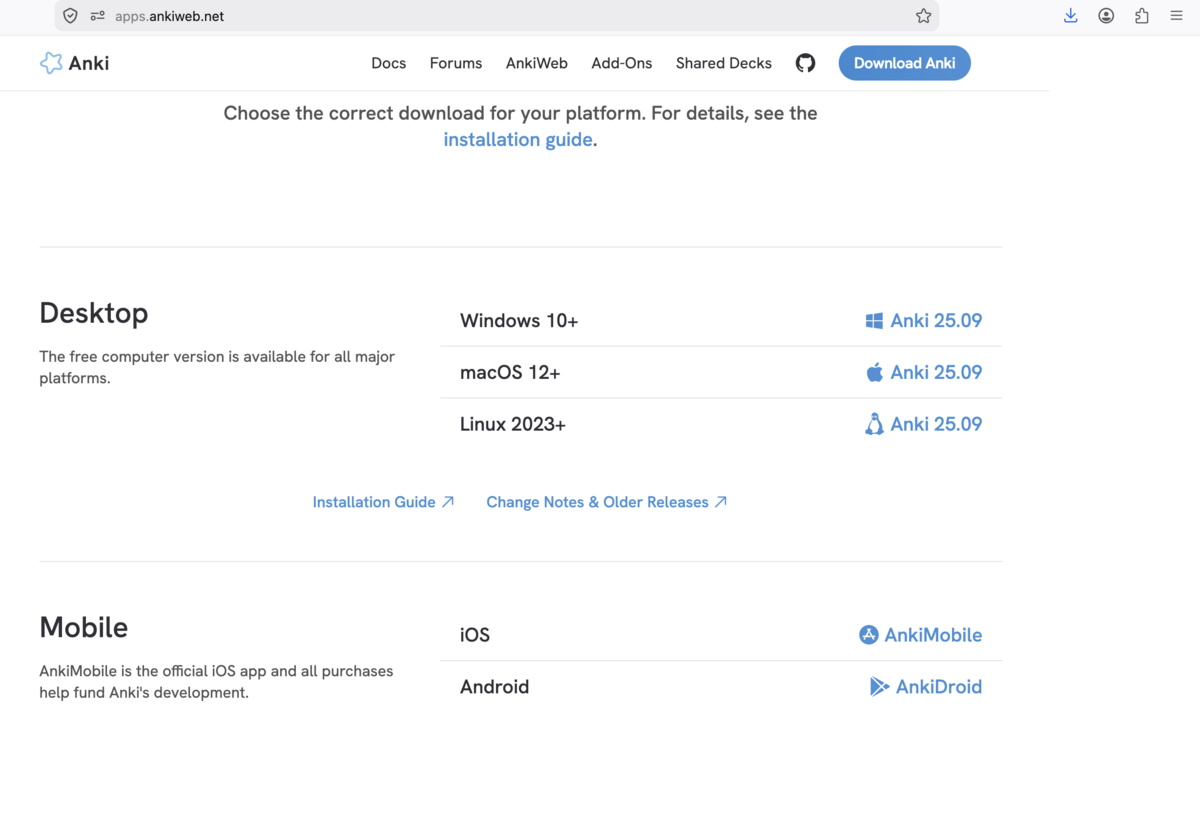
— The official download page — apps.ankiweb.net . Download the version for your platform. AnkiDroid (Android) is free; AnkiMobile (iOS) is a paid one-time purchase that funds ongoing development of the free desktop app.
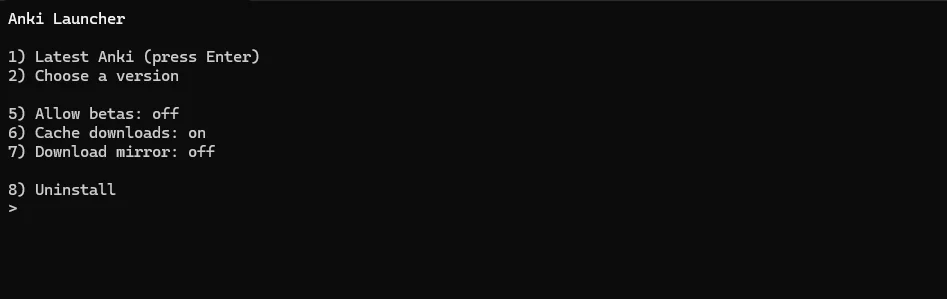
— On macOS, opening the downloaded .dmg launches this installer prompt. Press Enter to install the latest stable version — option 1 is the right choice for most users.
Setup checklist
- Download and install Anki from apps.ankiweb.net
- Create a free AnkiWeb account with your email address and verify it
- In the desktop app, click Sync in the top bar — Anki will ask for your account credentials
- Optionally: install AnkiDroid (Android) or AnkiMobile (iOS) and sign in to the same account for seamless cross-device sync
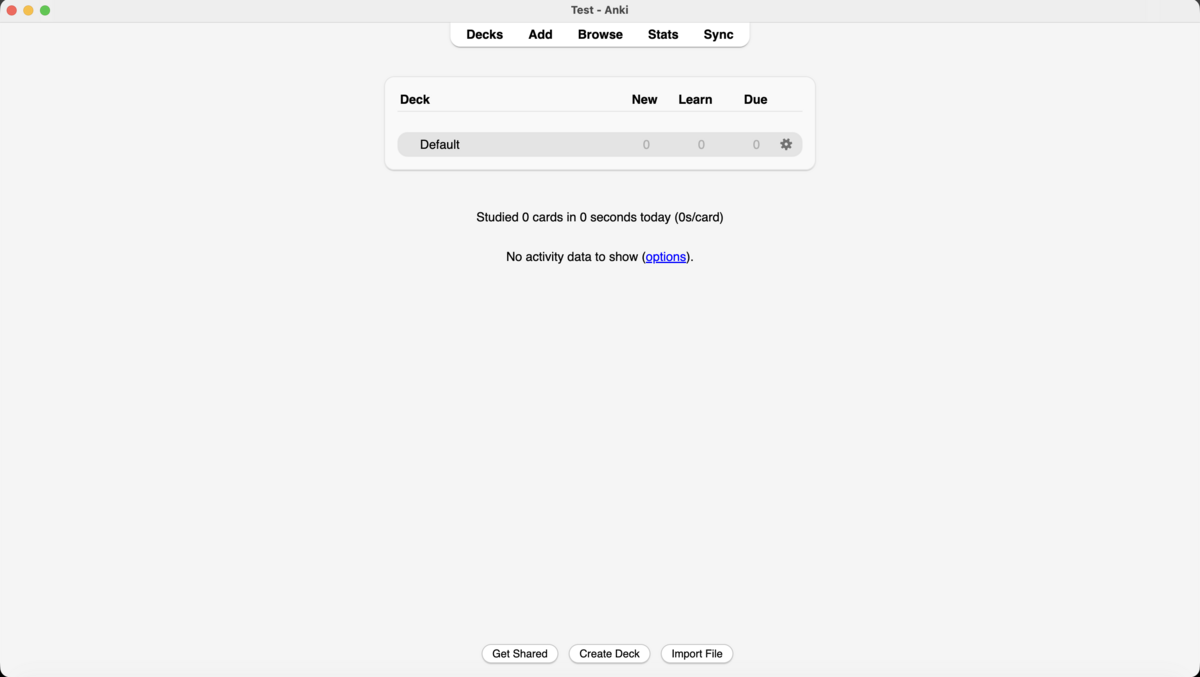
— Anki's main screen after a fresh install. The navigation bar at the top gives you access to Decks, Add, Browse, Stats, and Sync. Below the deck list, Anki shows how many cards you studied today — once you have review history, the heatmap (installed in Section 4) appears here.
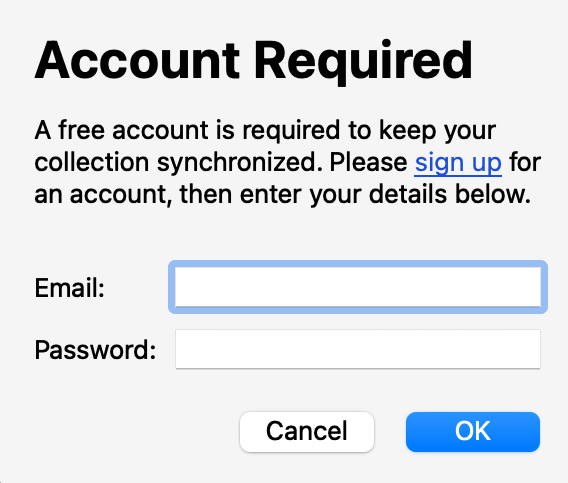
— When you first click Sync, Anki prompts for your AnkiWeb credentials. Enter your email and password to connect your collection to the cloud — all future syncs happen with a single click.
3. Tweaking Settings for Best Results
Anki's defaults are functional, but a few targeted changes make a significant difference. The most important change — enabling FSRS — should be done before you add your first card, as it affects how all future cards are scheduled.
FSRS is Anki's modern scheduling algorithm. It outperforms SM-2 by building an individual memory model for each card, adapting to your personal memory patterns over time rather than applying a one-size-fits-all formula.
To access these settings, click the gear icon (⚙) beside your deck and choose Options :
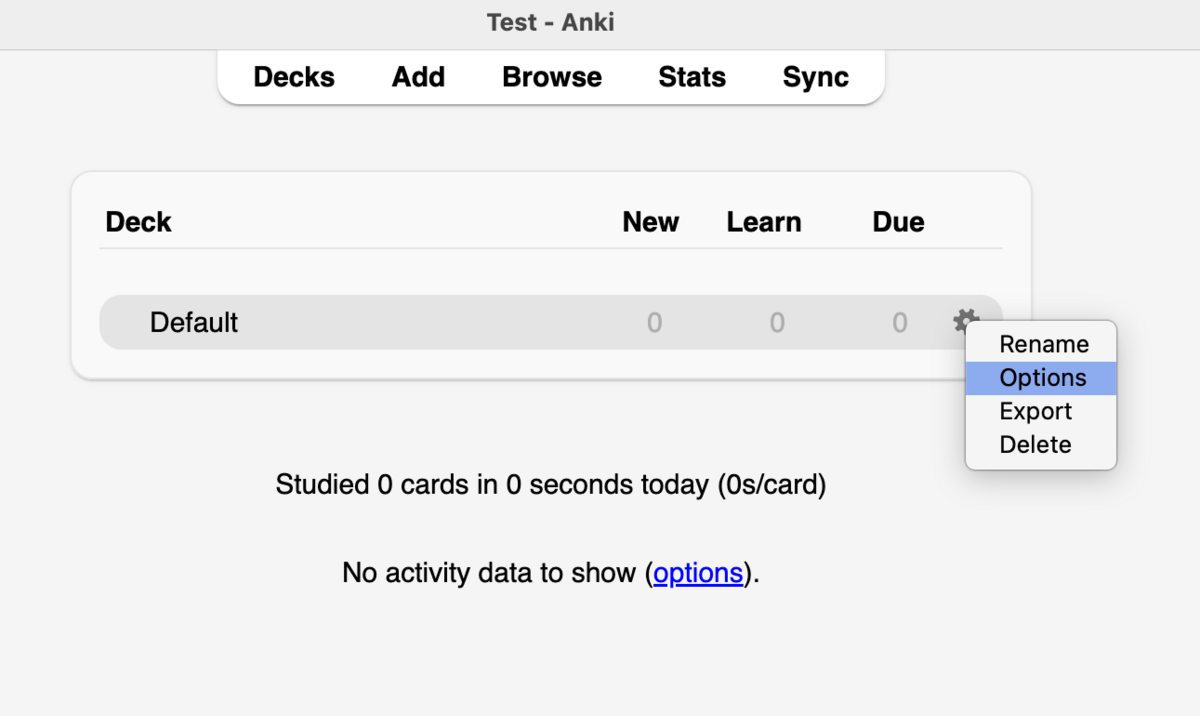
— Click the ⚙ gear icon beside your deck name, then choose Options to open the deck settings panel.
Scroll down past Daily Limits and New Cards to reach the FSRS section:
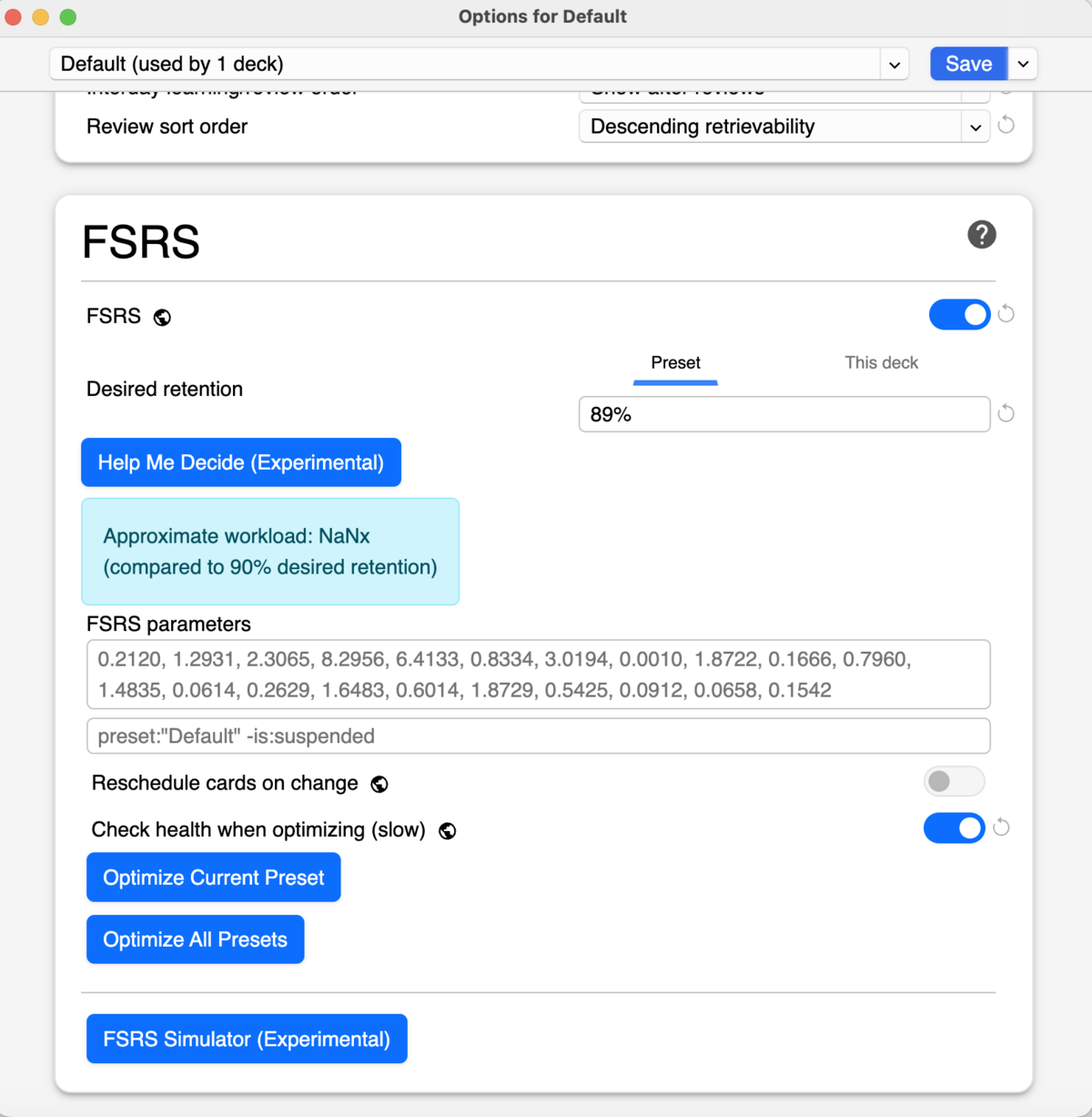
— The FSRS section in deck options. Toggle FSRS on , set Desired Retention to 0.90 , and click Save . Once you've completed a few hundred reviews, return here and click Optimise Current Preset to calibrate the model to your actual memory performance.
- Scroll to the FSRS section within Options
- Toggle FSRS on
- Set Desired retention to 0.90 — this means Anki aims for you to correctly recall 90% of cards when they come due
- Click Save
- After 300+ reviews: return here and click Optimise Current Preset to personalise the model to you
The top portion of Options controls how many new cards Anki introduces each day and how many reviews it schedules.
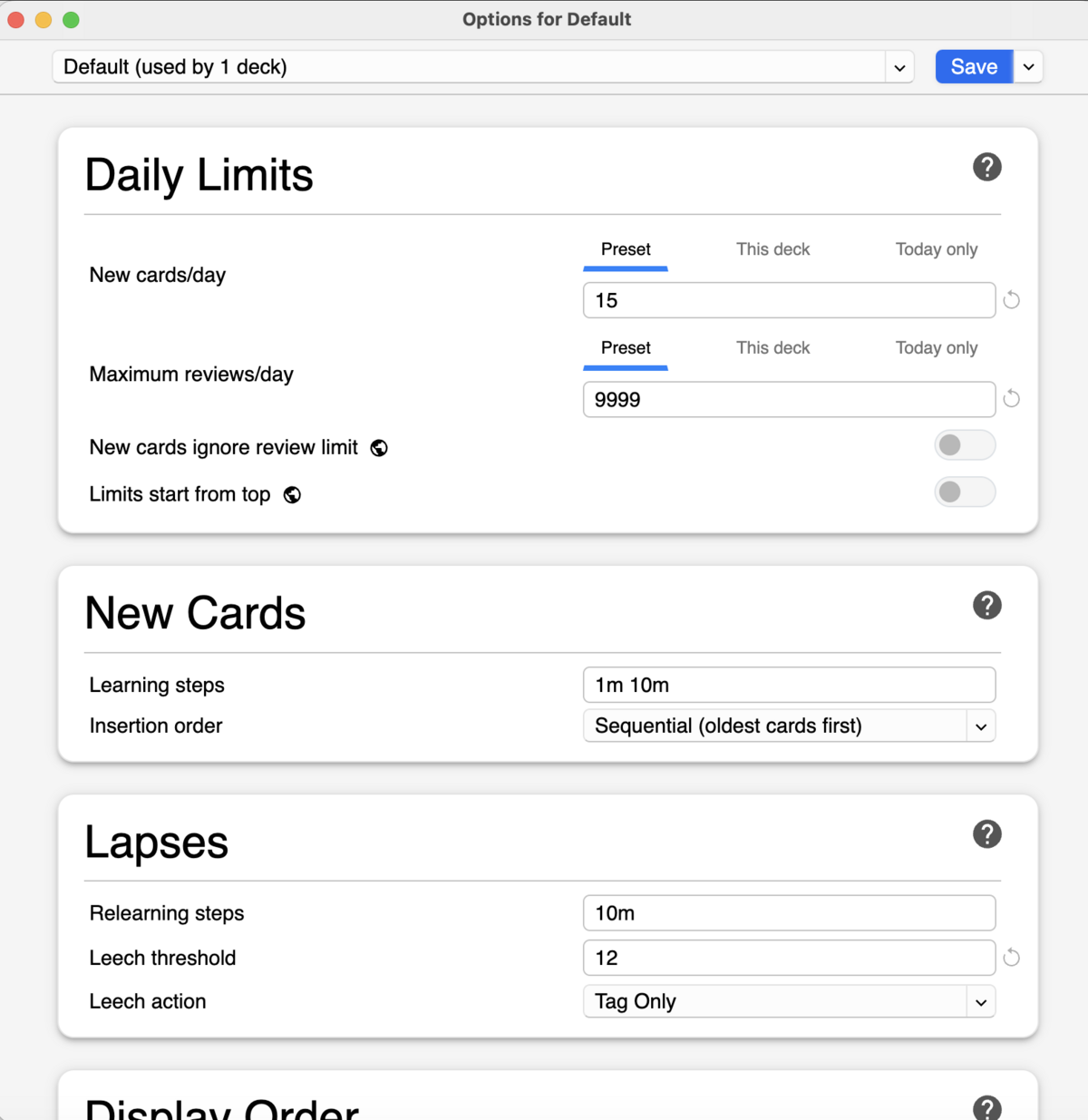
— The Daily Limits section. New cards/day controls how many fresh cards enter your learning queue each day. Maximum reviews/day should be set very high — let FSRS manage your actual review load naturally.
Key settings explained:
- New cards/day: Start conservatively — 10–15 per day is a sustainable pace for most learners. Every new card you introduce now creates future review obligations. It's easy to add more later; recovering from a backlog is demoralising.
- Maximum reviews/day: Set this to 9999 (effectively unlimited) and let FSRS decide the actual workload. Artificially capping reviews causes cards to pile up and undermines the whole scheduling system.
- Learning steps: The default 1m 10m is sensible — a brand-new card reappears after 1 minute, then 10 minutes, before graduating to day-length intervals. Leave this as-is when starting out.
4. Install Review Heatmap
Review Heatmap adds a GitHub-style contribution calendar to your Anki main screen, showing at a glance which days you reviewed and how many cards you studied. Seeing your streak visualised is one of the most effective motivation tools in the Anki ecosystem — the desire to keep the grid unbroken is a surprisingly powerful force.
— Review Heatmap on AnkiWeb — one of the most widely-used Anki add-ons, with over 2,000 positive ratings. It displays a colour-coded activity grid on your main screen, updated after every review session.
Installing any Anki add-on follows the same two-step process. First, open the add-ons manager via Tools → Add-ons :
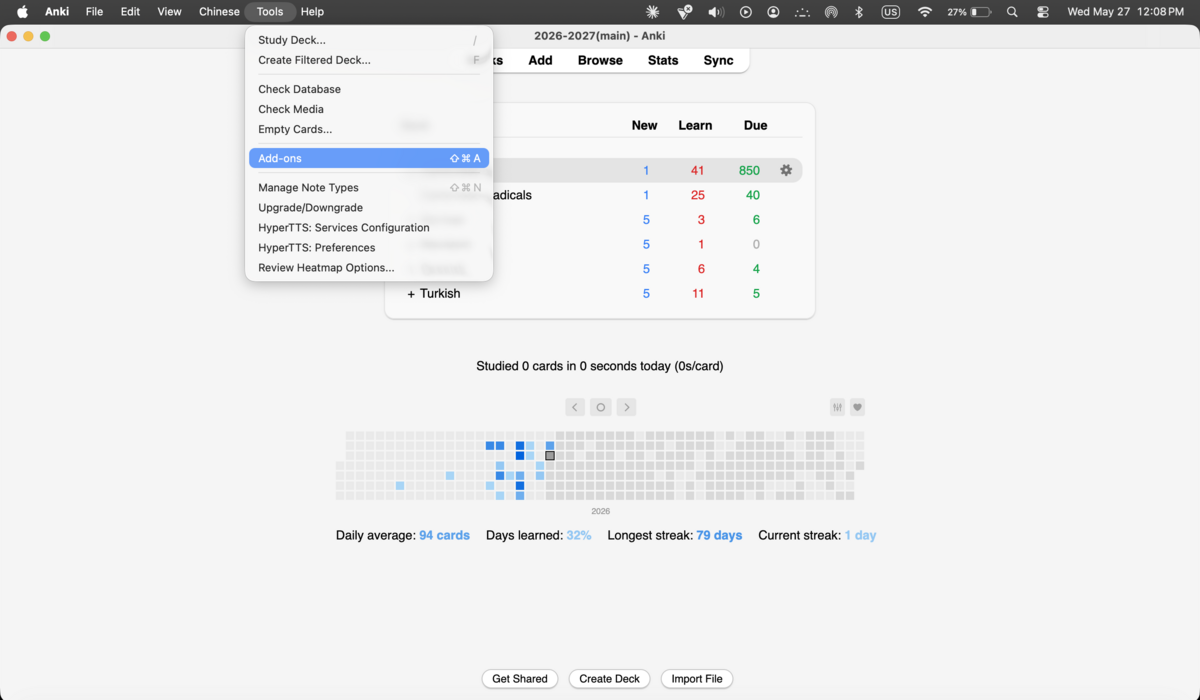
— Open Tools → Add-ons to reach the add-ons manager. You can see the Review Heatmap already active in the background — this is what your main screen will look like once it's installed.
Then click Get Add-ons… to open the install dialog:
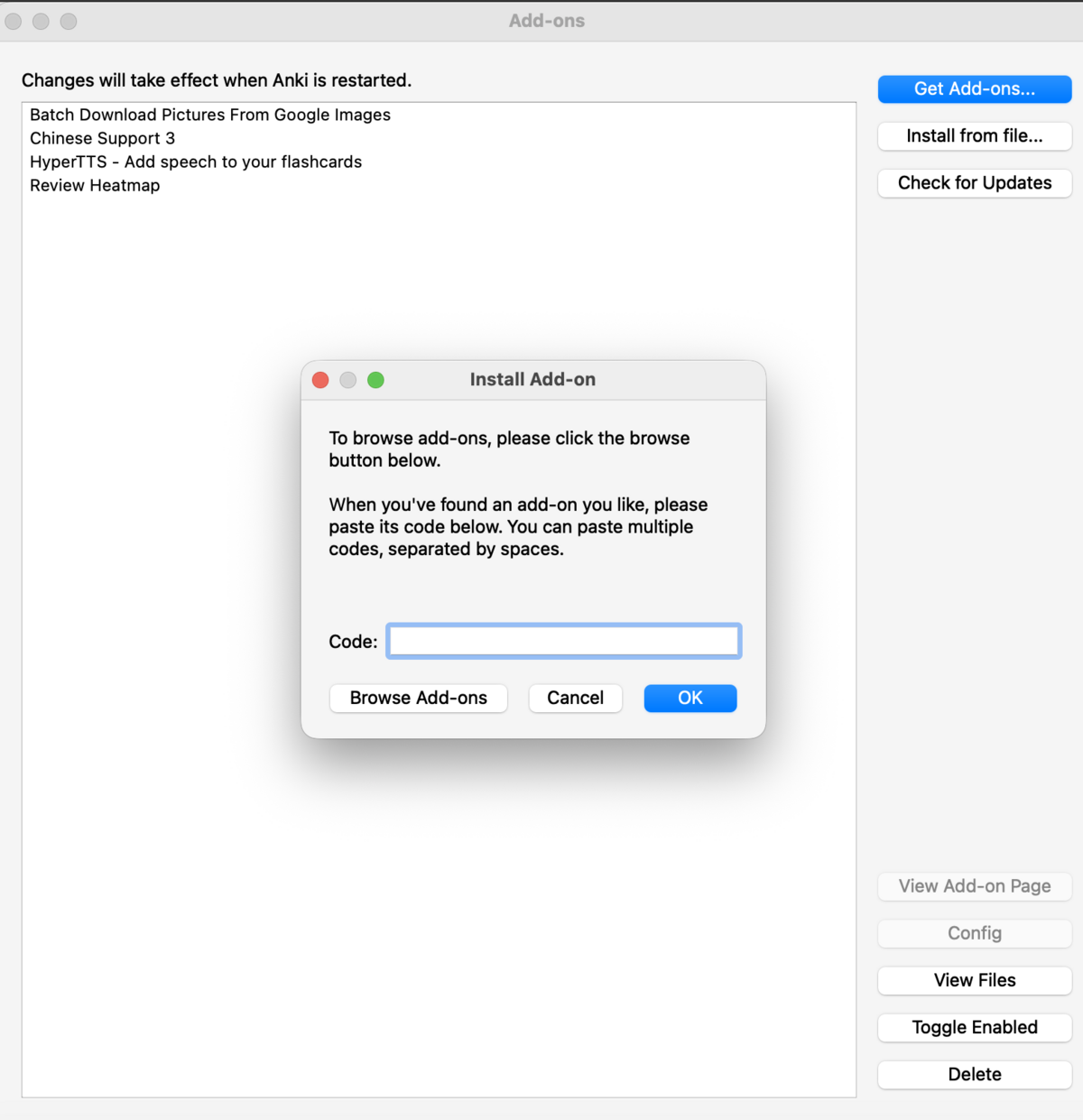
— The Install Add-on dialog. Paste the numeric add-on code here and click OK. Anki fetches and installs the add-on directly from AnkiWeb — no manual download needed.
- Go to Tools → Add-ons → Get Add-ons…
- Enter code 1771074083
- Click OK and wait for the download to complete
- Restart Anki — the heatmap appears on your main screen automatically after restarting
5. Notes, Cards & Note Types
This is the most important conceptual distinction in Anki, and it's worth making sure it's clear before you build anything: you don't create cards directly — you create notes , and Anki generates one or more cards from each note automatically.
A note is a unit of information — for example: a German word, its translation, an example sentence, and its grammatical gender. A card is a specific testable question generated from that note — "what is the German word for X?" or "what does Y mean?". One note can generate multiple cards testing different directions, all sharing the same underlying data.
This means if you spot a mistake in a word's translation, you fix it in one place — the note — and both the recognition card and the recall card are updated automatically.
A note type (also called a note model) is a reusable template that defines three things:
- Which fields each note has (e.g. Word, Translation, Audio, Example Sentence, Notes)
- Which card templates are generated from those fields (e.g. Word → Translation, Translation → Word)
- The HTML and CSS that controls how those cards look
Change anything in the note type — a field name, a card template, the CSS — and every note using that type updates automatically across your entire collection.
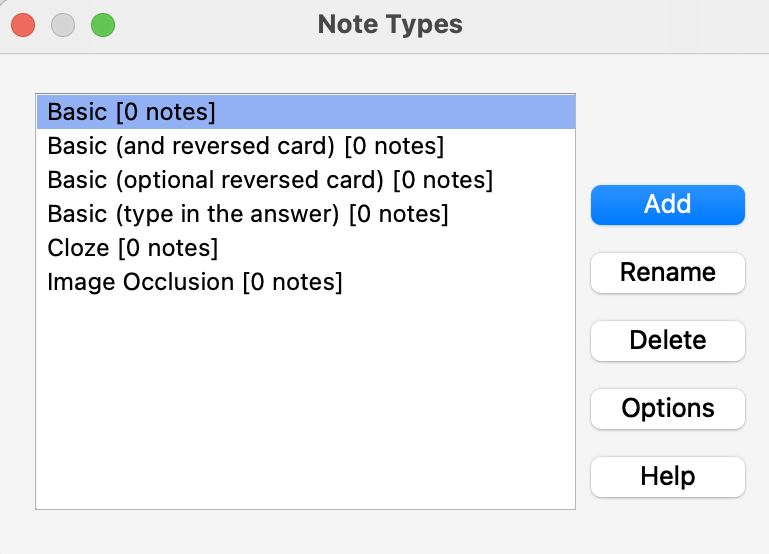
— The Note Types manager ( Tools → Manage Note Types ). Anki comes with several built-in types: Basic (two fields), Basic (and reversed card) (generates both directions automatically), Cloze (for fill-in-the-blank cards), and Image Occlusion. For language learning, you'll create a custom type with dedicated fields for audio, example sentences, and grammar notes.
Anki's built-in Basic note type has only two fields: Front and Back. That works for simple trivia, but for language learning you want more structure.
A custom note type lets you:
- Store structured data for each vocabulary item — word, translation, audio, example sentence, grammatical notes — in dedicated fields
- Generate multiple card directions from a single note entry (recognition, recall, listening)
- Use add-ons like HyperTTS to automatically fill the Audio field across your whole deck
- Style cards consistently with shared CSS — one design change updates every card in the note type
- Import AI-generated vocabulary lists cleanly, with each column mapping to the correct field
It takes about 5–10 minutes to set up once. Every card you ever add afterward benefits from that structure.
6. Creating Your Note Type
- Open Tools → Manage Note Types
- Click Add
- Select Add: Basic as your starting point — you'll customise it fully in the next steps
- Name it something clear: e.g. Language Vocab , German Vocab , Mandarin Words
- Click OK
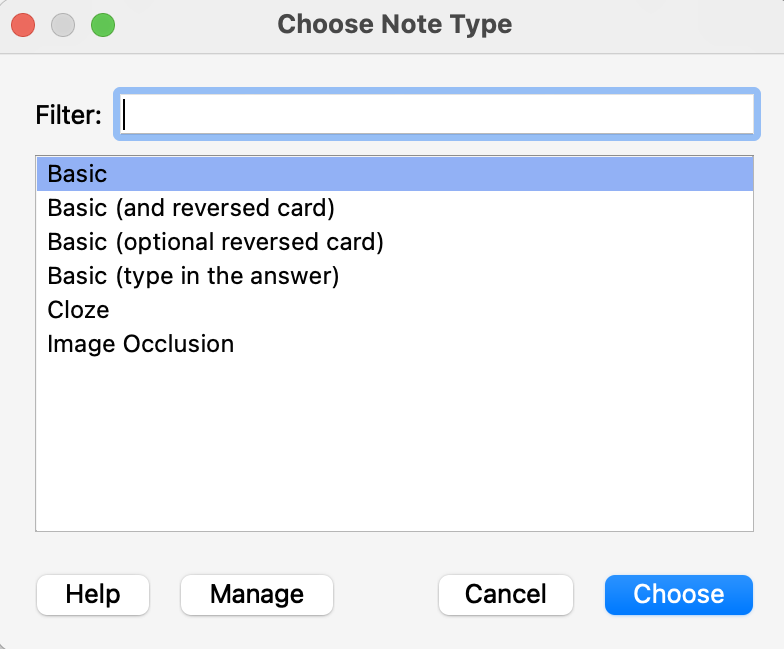
— Choose Basic as your starting point when adding a new note type. You'll replace its default fields and card templates with your own in the following steps.
With your new note type selected in the Note Types manager, click Fields . You'll see the default Front and Back fields. Rename and add fields to match the structure you need:
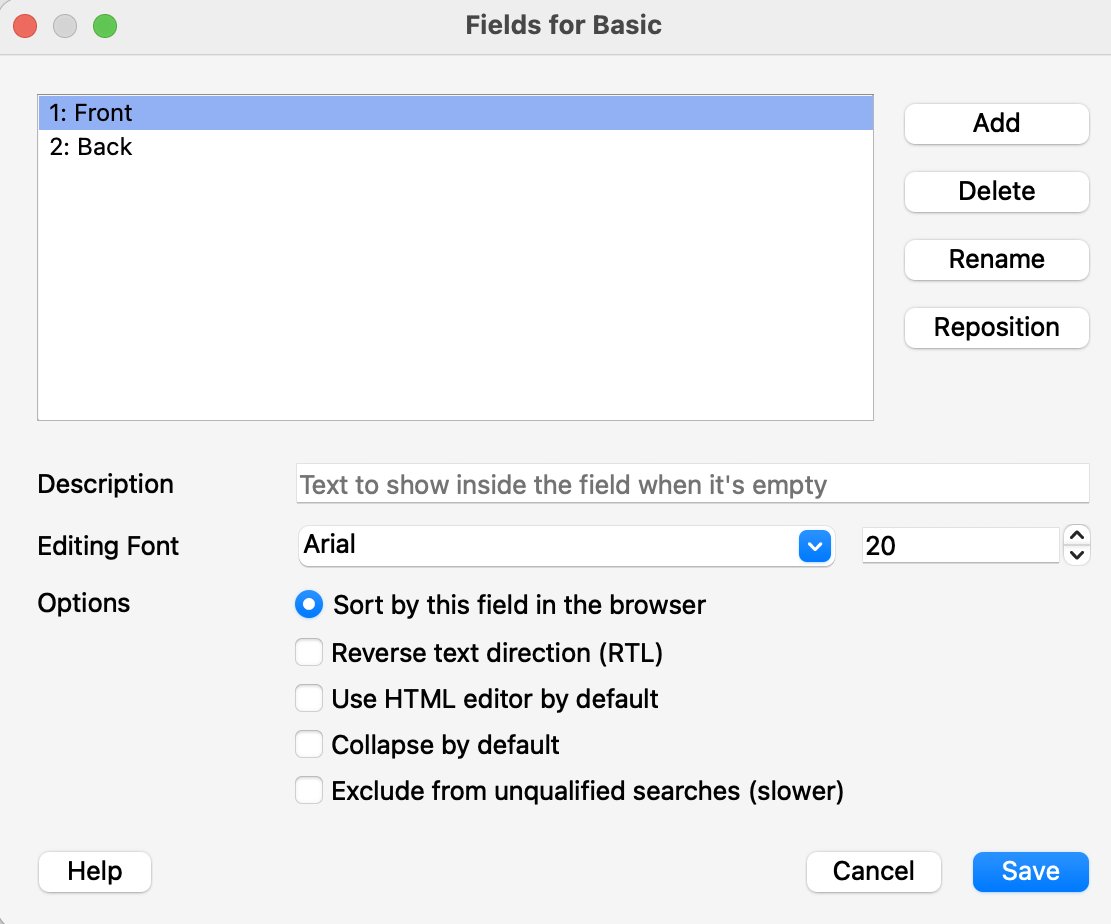
— The Fields editor . Use Rename to rename existing fields, Add to create new ones, and Reposition to change their order. The order here determines how they appear in the Add Note dialog.
Suggested field structure for a language learning note type:
Click Cards to open the card template editor. This is where you define what each side of a card looks like, using HTML for structure and CSS for appearance.
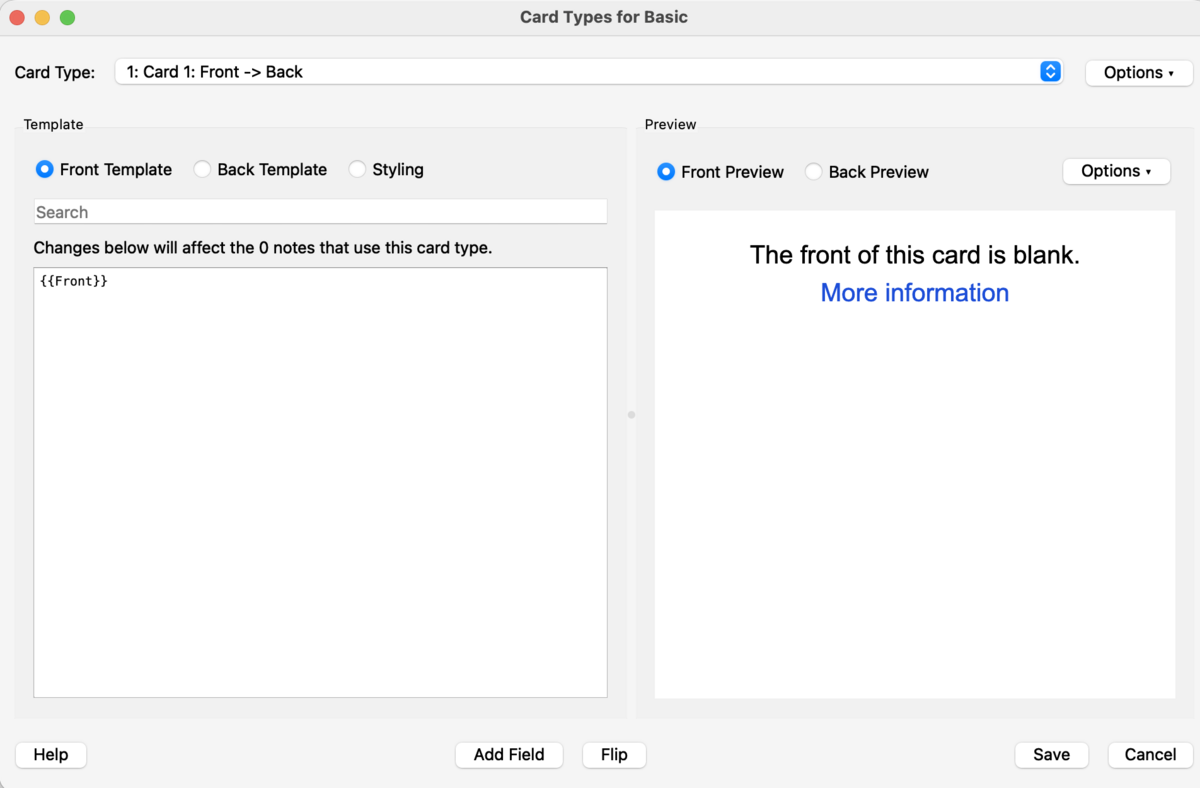
— The card template editor . Three tabs on the left — Front Template, Back Template, Styling — and a live preview on the right that updates as you type. Field values are inserted using double curly braces: {{Word}} , {{Translation}} , etc.
The three tabs serve distinct purposes:
Suggested card templates:
- Template 1 — Recognition: Word + Audio → Translation + Example Sentence + Notes
- Template 2 — Recall: Translation → Word + Audio
- Template 3 — Listening: Audio only → Word + Translation
Templates 1 & 2 are sufficient for most learners. Add Template 3 once you have audio in your deck — it's an effective way to build listening comprehension without any extra note-taking effort.
To add a second card template, click Options → Add Card Type in the template editor:
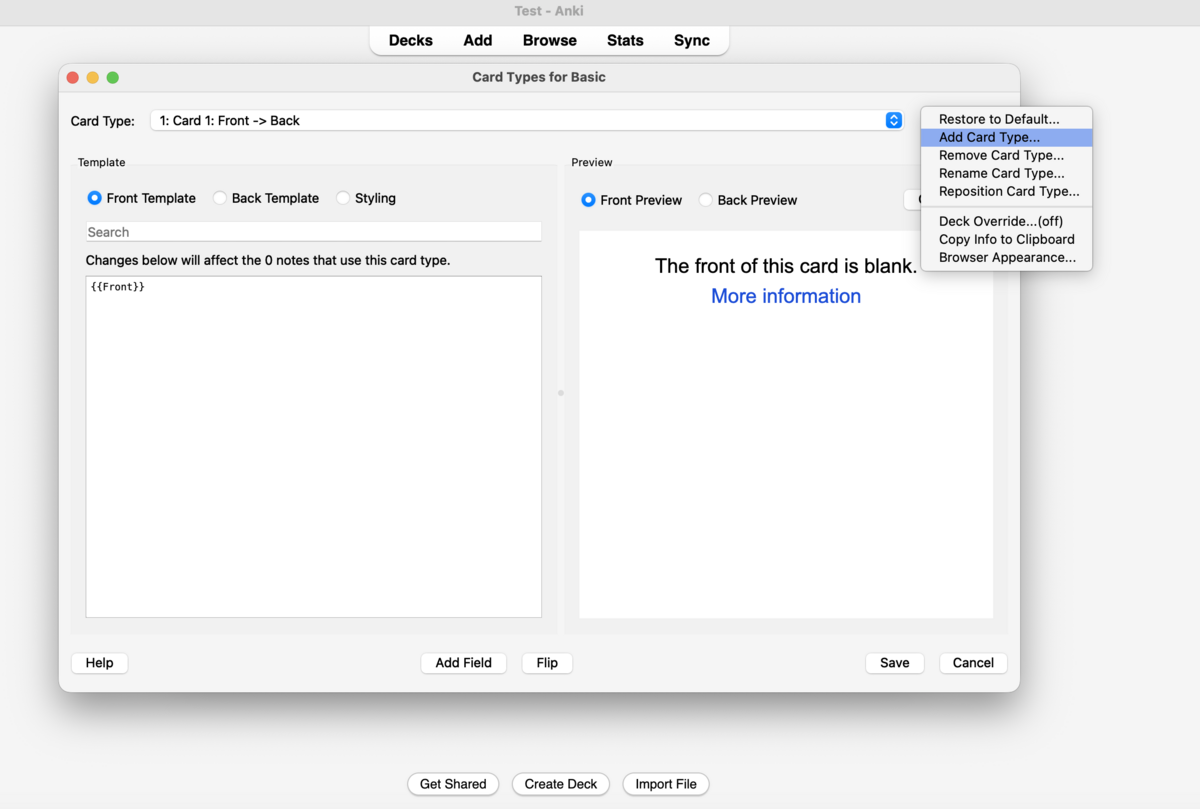
— Click Options → Add Card Type to create an additional template within the same note type. Each template generates a separate card from each note — so two templates means two cards per vocabulary entry.
7. Adding Your First Note
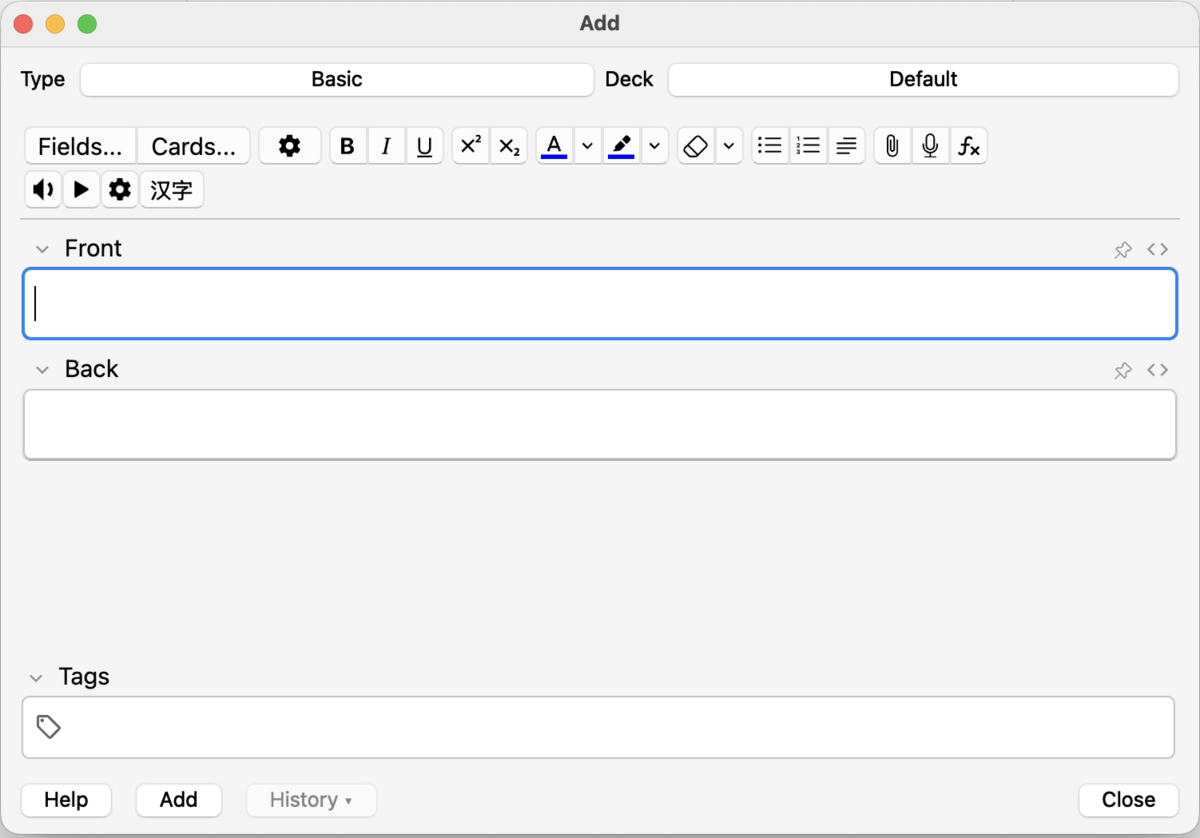
From Anki's main screen, click Add (or press A ) to open the note editor. Before typing anything, check that the Type dropdown at the top shows your custom note type — not the default Basic.
— The Add Note dialog. Change the Type dropdown (top left) to your custom note type before entering anything. The Deck dropdown lets you choose which deck receives the new note.
- Click Add on the main screen (or press A )
- Confirm the Type dropdown shows your custom note type
- Fill in Word — the target-language word or phrase you want to learn
- Fill in Translation — the meaning in your native language
- Add an Example Sentence if you have one — even a rough one helps anchor the word in context
- Add Notes if relevant — gender, register, a memorable association, an irregular form
- Leave Audio blank — HyperTTS fills this across your whole deck in Part 2
- Click Add to save. The dialog stays open so you can add the next note immediately.
- Add 5–10 notes, then click Study Now on your deck to do your first review session
Part 2 — Audio, Card Styling & AI-Generated Cards
This section covers three tools that take your Anki setup from functional to excellent: HyperTTS for automatic audio generation across your whole deck, card template styling for clean and readable card design, and AI-assisted card creation for building large high-quality decks quickly.
1. HyperTTS — Automatic Audio
HyperTTS is an Anki add-on that automatically fills your Audio field using text-to-speech (TTS). It connects to VocabAI , which provides access to high-quality voices from Google, Azure, Amazon, ElevenLabs, and others. You point it at your Word field, choose a voice, and it generates audio for every note in your deck — typically in under a minute, with no manual recording required.
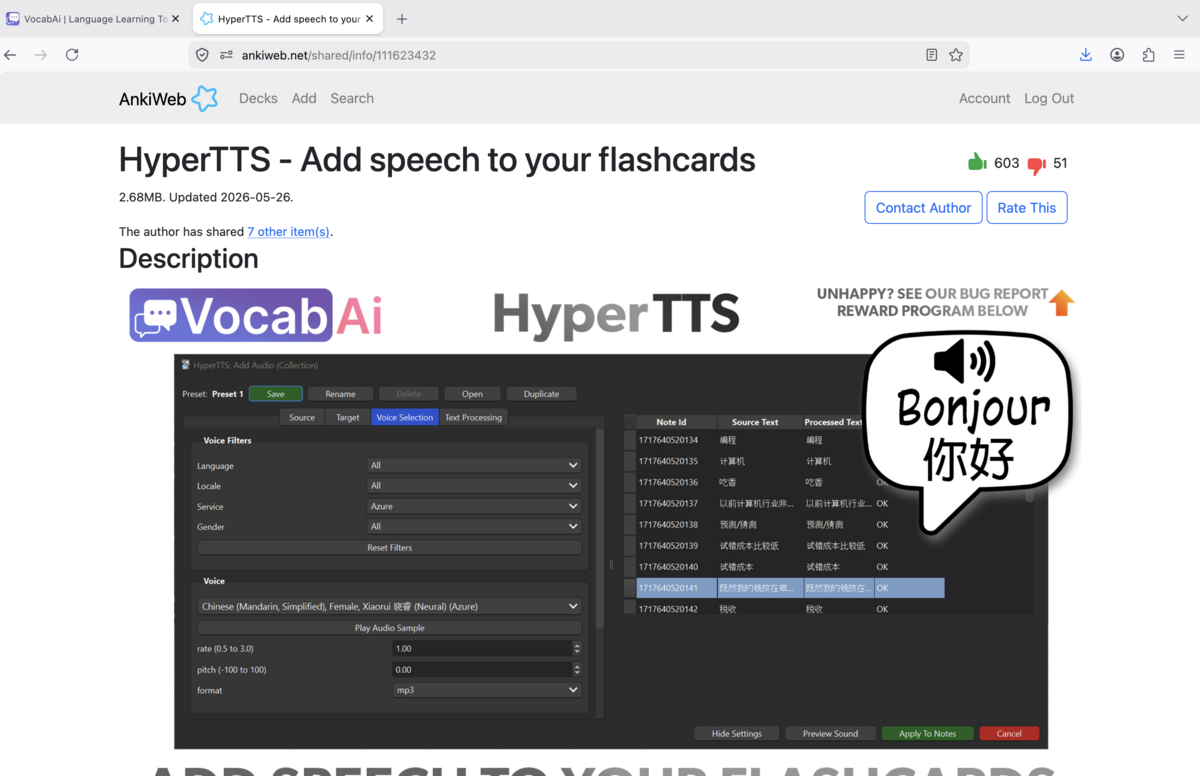
— HyperTTS on AnkiWeb. It integrates with VocabAI to give you access to dozens of high-quality TTS voices across a wide range of languages — including less commonly covered languages where good TTS options are otherwise hard to find.
- In Anki: Tools → Add-ons → Get Add-ons…
- Enter code 1508862472
- Click OK and wait for the download
- Restart Anki — after restarting, you'll see HyperTTS entries in the Tools menu
HyperTTS connects to VocabAI for voice access. A free account is available with a generous monthly character allowance — sufficient for a typical language learner's workflow.
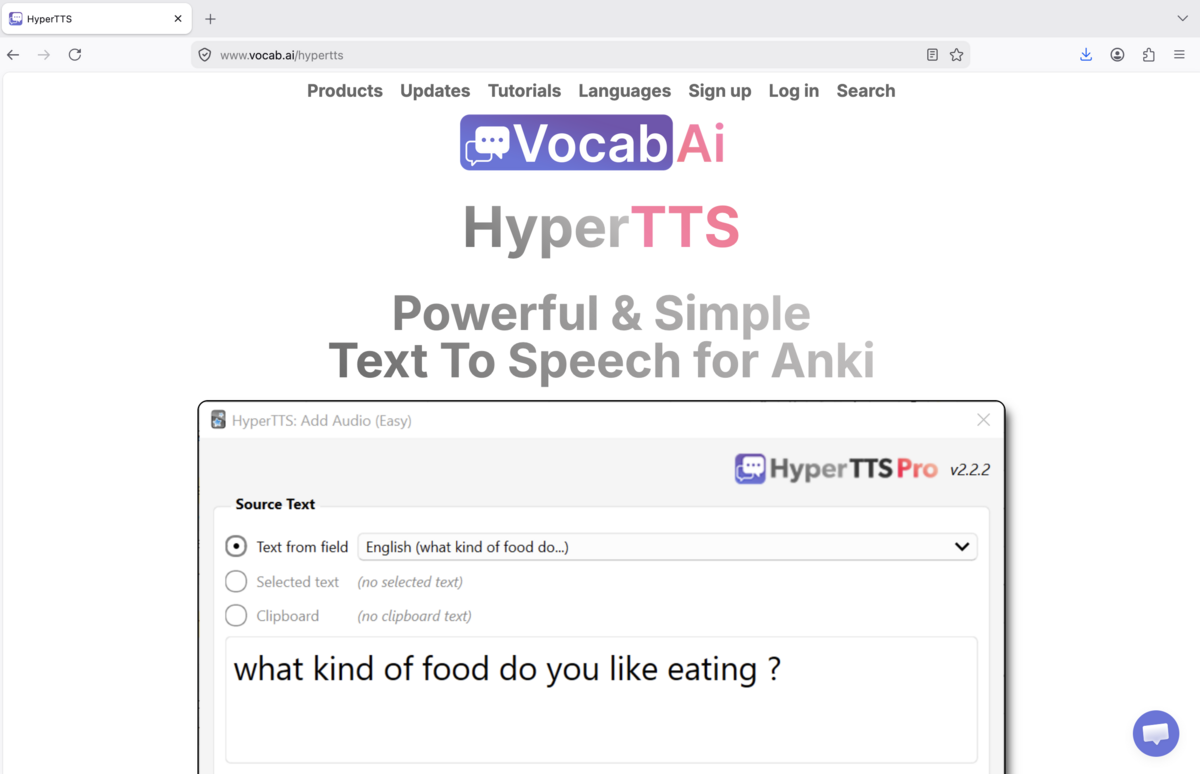
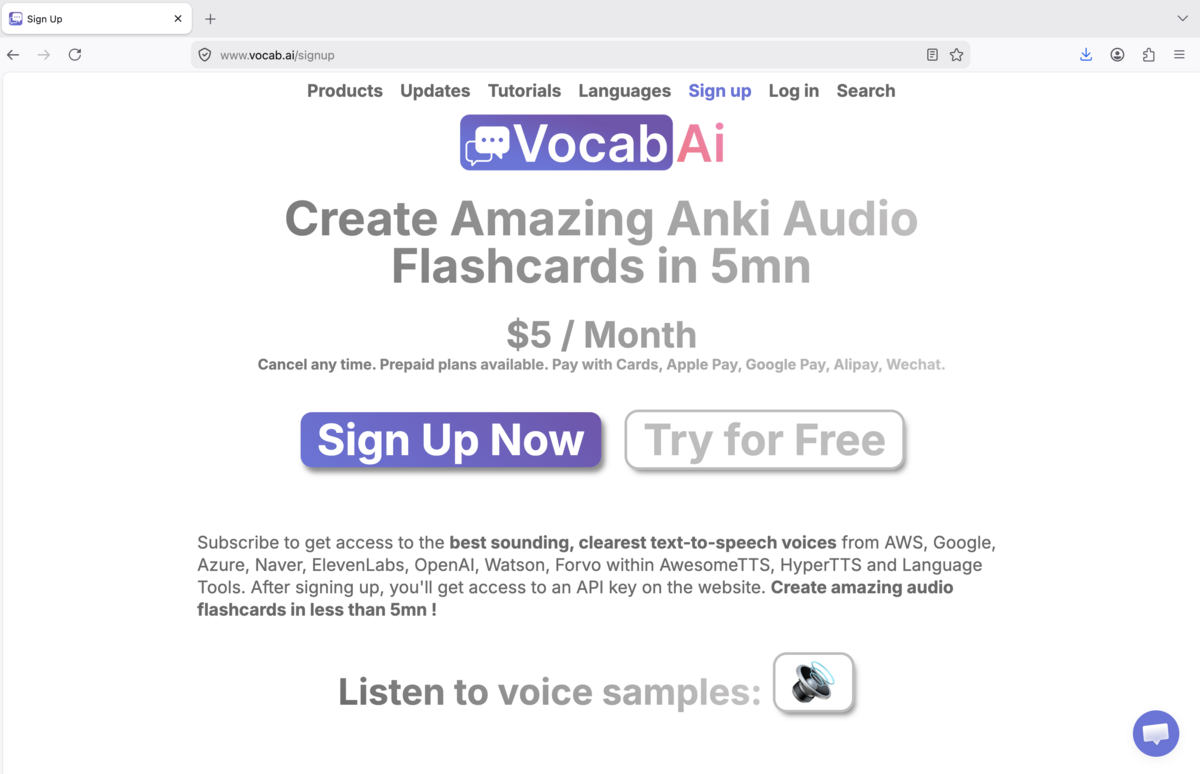
— Sign up at vocab.ai/signup . The free tier covers most language learners' needs. Paid plans give access to premium voices (ElevenLabs, Forvo recordings) and higher monthly limits.
— After signing up, log in at app.vocab.ai to reach your dashboard, where you'll find your API key.
- Go to vocab.ai/signup and create a free account
- Verify your email, then log in at app.vocab.ai
- Copy your API key from the dashboard
- In Anki: Tools → HyperTTS: Services Configuration
- Find VocabAI in the services list
- Paste your API key into the field provided
- Click Verify — you should see your account status and remaining character balance confirmed
- Open the Browse window and select all notes in your deck (Ctrl+A / Cmd+A)
- With notes selected, go to HyperTTS → Add Audio (Note Types)
- Set Source field to Word — the field containing your target-language text
- Set Target field to Audio
- Choose a voice — select a native-speaker voice for your target language. Browse by language and listen to samples.
- Click Preview Sound on a sample card to verify the quality sounds natural
- Click Apply to Notes — HyperTTS processes all selected notes and fills the Audio field for each one
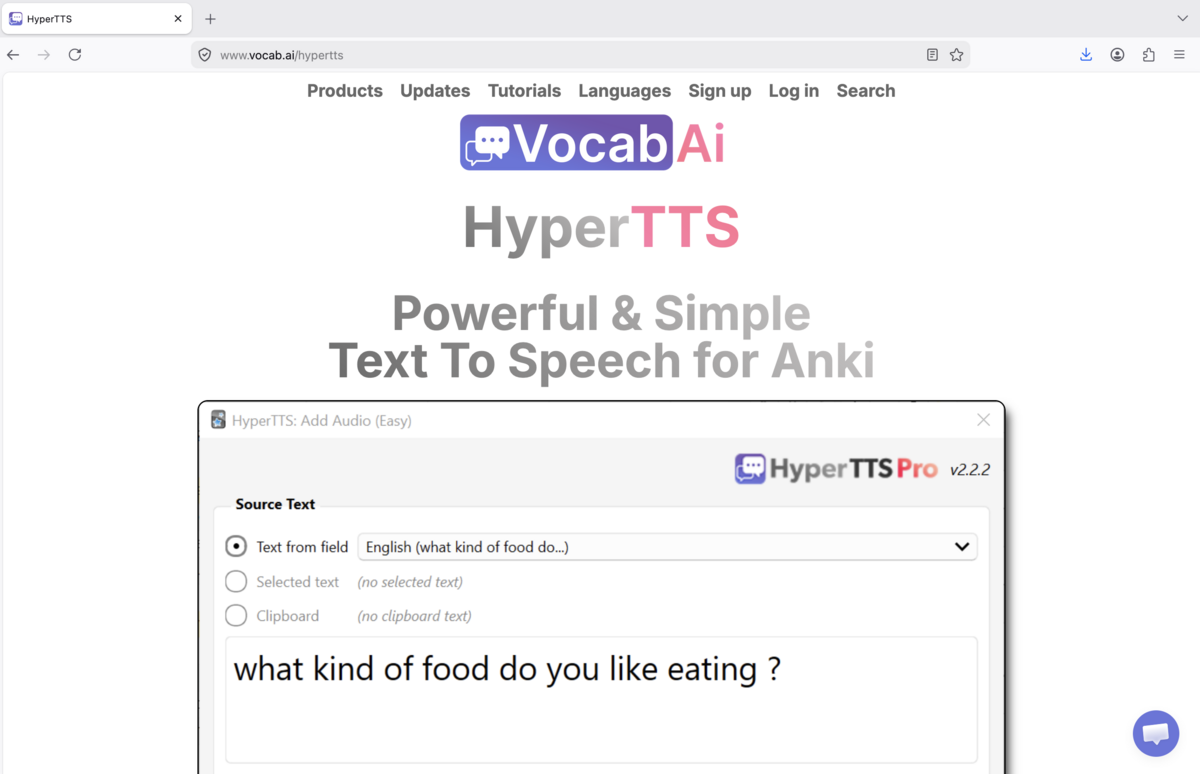
— The HyperTTS: Add Audio (Easy) dialog. Set Source Text to your Word field, choose a voice below, then preview a sample before applying to all notes.
2. Styling Your Cards
Card styling is done entirely within your note type's card templates, using standard HTML for layout and CSS for appearance. Open the template editor via: Tools → Manage Note Types → [your type] → Cards .
The CSS you write here applies to every card generated by this note type — one design change instantly updates your entire deck. Card styling renders consistently on desktop, iOS, and Android.
Front Template:
Back Template:
Styling (CSS):
- Use a large font for the tested word: 22px or higher. You're testing recognition and recall, not reading small print. The target word should be immediately legible.
- Establish a colour hierarchy: Bright/white for the word being tested; a mid-tone colour for the translation; dimmer still for example sentences and notes. This lets you scan a card in half a second.
- Use conditional fields to avoid blank space. Wrap optional fields in {{#FieldName}}…{{/FieldName}} — the block only renders if the field contains content.
- Dark backgrounds are easier on the eyes during long review sessions. The example CSS above uses near-black — adjust to your preference.
- Keep it simple. A clean, fast-to-read card is more effective than a visually complex one. Every second spent parsing the layout is a second not spent on the actual memory work.
3. Creating Cards with AI
AI tools — DeepSeek, ChatGPT, Claude — can generate complete, ready-to-import card lists in seconds. The workflow: write a structured prompt specifying your fields and output format, paste the AI response into a text file, and import it directly into Anki. A well-written prompt produces 20–30 high-quality vocabulary cards in under a minute.
- Write a prompt specifying your exact fields and output format (see examples below)
- Copy the AI's output into a plain .txt file
- In Anki: click Import File on the main screen (or File → Import )
- Set the field separator to Tab
- Match each column to the correct field in your note type
- Set the import behaviour to Add notes for new cards, or Update notes where first field matches to avoid duplicates
- Click Import — cards appear in your deck instantly
Paste this template directly into any AI tool and adapt the language and topic:
- Always specify no header row and the exact separator. Tabs are the most reliable choice for Anki imports — commas cause problems with sentences that contain commas.
- Explicitly ban markdown formatting — asterisks, backticks, and bullet points break the import silently and are hard to spot until you're reviewing.
- Generate in batches of 20–30 rather than 100+ at once. Quality is more consistent in smaller batches, and you can review each batch before importing the next.
- Ask for high-frequency vocabulary within your topic, not exhaustive lists. The 20 most common kitchen words are more useful than 100 obscure ones.
- Request natural, contemporary example sentences rather than textbook-style ones. Modern AI generally does this well if you specify it explicitly.
- Spot-check before running HyperTTS. AI is highly reliable but not perfect. Five minutes of checking now prevents audio being generated for cards you'll need to delete later.
All three tools generate high-quality language flashcards. Use whichever you already have access to — the prompt template above works with any of them.
Final Checklist
- HyperTTS installed and connected to VocabAI with a verified API key
- Audio generated and previewed for at least one deck
- Card templates styled with custom HTML/CSS matching your preferences
- At least one batch of AI-generated cards imported and spot-checked for accuracy
Part 3 — Cloze Deletion Cards
1. What Is a Cloze Card?
A cloze deletion card is a fill-in-the-blank flashcard. A portion of a sentence or phrase is hidden — "deleted" — and you must recall it before flipping the card.
Example: "The capital of France is {{c1::Paris}}." When reviewing, you see: "The capital of France is ___."
The notation {{c1::…}} is Anki's cloze syntax. c1 is the cloze group — multiple deletions in the same note can share a number (revealed together) or use different numbers (tested separately).
Basic cards (front/back) are ideal for isolated facts with a clear question–answer pair: "What does 猫 mean?" → "Cat."
Cloze cards shine when the surrounding context is part of what you need to learn — grammar patterns, collocations, idiomatic usage, or any fact that is easier to remember within a sentence than in isolation. For language learning, cloze is usually the better default for vocabulary and grammar.
2. Why Cloze Cards Work
Cloze cards tap into several overlapping memory principles that make them more effective than simple Q&A pairs for most kinds of knowledge.
The testing effect
Retrieving information from memory — even imperfectly — strengthens memory far more than re-reading it. The act of generating the missing word, not just recognising it, is what builds durable recall. This is why fill-in-the-blank consistently outperforms multiple-choice in memory research.
Contextual encoding
Memory is associative. When a target word is embedded in a meaningful sentence, your brain has more "hooks" to attach it to: syntax, adjacent words, topic, emotion. Isolated word pairs give you one retrieval path; a cloze sentence gives you many.
Sentence-level pattern recognition
For language learning specifically, cloze cards train your intuition for how words are actually used — which prepositions they take, how they inflect, where they fall in a sentence. This is something a basic card simply cannot replicate.
Reduced cognitive load
A good cloze card tests one thing at a time within a comprehensible frame. You don't have to construct the entire context from memory — the sentence does that work for you — so all your cognitive effort goes toward the target item.
3. Creating Cloze Cards in Anki
Anki has a built-in Cloze note type. Select it when adding a new note, type your sentence in the Text field, highlight the word(s) you want hidden, and press Ctrl+Shift+C (or Cmd+Shift+C on Mac). Anki wraps the selection in {{c1::…}} automatically.
Multiple clozes in one note
Each c number generates a separate card. A note with {{c1::…}} and {{c2::…}} produces two cards — one hiding the first deletion, one hiding the second — but both share the same sentence as context.
Use a single cloze number ( c1 on both) if you want two words revealed or hidden together. Use different numbers if you want to test them independently.
The Extra field
The Cloze note type has an optional Extra field shown on the answer side. Use it for: native-language translations, pronunciation guides, example sentences, grammar notes, or images. It keeps your main card clean while still giving you useful context when you need it.
You can include a hint inside the cloze: {{c1::Berlin::capital city}} shows "___ (capital city)" during review. Hints are useful when a card would otherwise be ambiguous — but use them sparingly, since a harder card with no hint builds stronger memory.
4. Effective Cloze Formatting
What makes a cloze card good or bad has almost nothing to do with Anki itself — it comes down to the quality of the sentence you choose and how precisely you define the gap.
The minimum information principle
Each card should test exactly one thing. If you find yourself writing a sentence where the blank could be any of three plausible answers, split it into separate cards or rewrite the sentence so the context uniquely determines the answer.
Delete the right element
Delete words that carry meaningful load: a verb's conjugated form, an inflection, a preposition that follows a specific verb, a vocabulary word in context. Don't delete filler — articles, conjunctions, or common words the sentence can't function without — unless those function words are the target of study.
Keep the gap appropriately challenging
A blank that's too easy (only one word could possibly fit) trains recognition without effort. A blank that's too hard (the answer isn't inferable from the surrounding text) creates frustration and false negatives. The sweet spot is a blank that requires genuine recall but whose answer feels satisfying and unambiguous once revealed.
Prefer full, natural sentences
Avoid truncated or artificial sentences. "She [blank] to the store every morning." is less useful than "She walks to the store every morning before work." — the extra detail both sounds natural and adds retrieval hooks.
5. Incremental Information Hiding
One powerful cloze technique is to build a sequence of cards that progressively hide more of the same sentence. This is especially effective for grammar patterns, conjugation paradigms, and multi-part factual lists.
Example — learning German verb conjugation:
- Card 1: "Ich {{c1::gehe}} jeden Tag spazieren." (test the verb)
- Card 2: "Ich gehe jeden {{c2::Tag}} spazieren." (test the time expression)
- Card 3: "Ich gehe jeden Tag {{c3::spazieren}}." (test the infinitive)
Each card tests a different element, but all three share the same sentence, so you're also drilling the sentence's overall shape and rhythm. Over time, the whole sentence becomes automatic.
Don't overdo it — three cloze deletions per sentence is usually a comfortable ceiling. Beyond that, you risk making the cards feel mechanical rather than meaningful.
6. Context-Rich Learning
The best cloze cards come from real language you've encountered — sentences from books, podcasts, shows, conversations, or articles. This is called sentence mining , and it produces cards that feel personally meaningful because you already have a memory attached to the source.
A sentence you heard in a show you love, or read in a book that moved you, will stick far better than a textbook example — even if both sentences are grammatically identical. Emotional and episodic context are powerful memory aids.
Where to mine sentences
- Subtitles from shows you're watching (tools like ASBPlayer automate this for language learners)
- Reading material — novels, news articles, graded readers
- Conversations or text exchanges in the target language
- Podcast transcripts
- Your own writing, corrected by a native speaker or AI
The i+1 principle
Mine sentences where you understand everything except the target word or structure. If a sentence has three unknowns, it's too opaque — the context can't help you infer anything, and reviewing it will feel like guessing. One unknown per card is the ideal.
7. Cloze Cards for Language Learning
Cloze cards are arguably more useful for language learning than any other flashcard format. Here's how to apply them across different aspects of acquisition.
Vocabulary in context
Rather than testing a word in isolation ( "猫 → cat" ), test it in a sentence that shows how it's used: "この{{c1::猫}}は毎日魚を食べます。" (This cat eats fish every day.) This builds both recognition and usage intuition simultaneously.
Grammar and inflection
Cloze cards are ideal for drilling grammatical patterns — verb endings, case markers, aspect, tense, agreement. The surrounding sentence acts as a grammar scaffold, so you're learning the rule in context rather than as an abstraction.
Example for Turkish: "Dün markete {{c1::gittim}}." (Yesterday I went to the market.) Tests the past-tense first-person suffix in a real sentence.
Collocations and set phrases
Many vocabulary errors aren't about meaning — they're about which words naturally go together. "Make a decision" not "do a decision." Cloze cards drill these combinations more naturally than any other format: "She finally {{c1::made}} a decision after weeks of deliberation."
Particles, prepositions, and function words
These are notoriously hard to learn from a dictionary. Cloze cards force you to recall which particle follows a specific verb, which preposition a particular noun takes — exactly the knowledge that's built by exposure but is hard to study explicitly any other way.
8. Common Mistakes to Avoid
Overly large deletions
Deleting an entire clause or long phrase turns a focused recall exercise into a production test. If you're blanking out five words at once, ask yourself: am I testing one thing or five? Split the card, or reduce the gap to the single most important element.
Decontextualised blanks
A sentence like "The {{c1::dog}} barked loudly." where any noun could fit isn't testing anything useful. Your brain needs the surrounding context to uniquely determine the answer — otherwise the card is just a guessing game, not a memory test.
Too many cloze cards per note
Cramming six deletions into one sentence bloats your review queue and makes individual cards feel arbitrary. Two or three targeted deletions per note is usually the right ceiling.
Neglecting the Extra field
If a card requires any supporting information — a translation, an image, a grammar note — put it in the Extra field. Don't clutter the main sentence with meta-information that belongs on the answer side only.
Mining sentences you don't understand
If the surrounding context is opaque, the cloze card loses its main advantage. Stick to sentences where you understand everything except the target item. Cards you can't make sense of will frustrate you and drift toward "leeches" — items you fail repeatedly without getting better.
Ignoring leech management
Anki marks cards as "leeches" when you fail them many times. Don't ignore this signal. A leech usually means the card is poorly formatted (ambiguous, too hard, bad context) rather than that the information is genuinely impossible to learn. Rewrite it.
9. Advanced Strategies
Image cloze
Anki supports images in cloze cards. Combining a picture with a cloze deletion is powerful for visual vocabulary — anatomy, geography, labelled diagrams, or any domain where the visual reinforces the word. Add an image to the Extra field or embed it directly in the Text field before the sentence.
Audio cloze
For listening comprehension, you can create cloze cards where the content is an audio clip with a word removed. This is advanced to set up but extremely effective for drilling phonetic patterns, listening recall, and pronunciation awareness. Tools like HyperTTS can assist in generating audio.
Cloze for formulaic knowledge
Cloze cards work well beyond language learning. They're excellent for memorising code snippets (blank out a function name or syntax), legal or medical definitions, historical sequences, scientific formulas, or any structured knowledge where the surrounding context helps anchor the target fact.
Reversed cloze (production)
A normal cloze card tests recognition : you see the sentence with a gap and recall the word. A useful advanced variant is to create a sibling card that shows only the word and asks you to produce a correct sentence using it. Anki doesn't automate this — you'd create it as a separate basic card — but pairing recognition and production cards dramatically accelerates fluency.
Tagging and filtered decks
Tag your cloze cards by topic, chapter, difficulty, or grammatical category. Anki's filtered deck feature lets you run a focused session on just the tags you need — useful for pre-exam cramming or revisiting a specific grammar point without disturbing your main deck's scheduling.
10. Using AI to Build Better Cloze Cards
Modern AI tools — ChatGPT, Claude, Gemini — are genuinely useful for Anki card creation. They don't replace the discipline of actually reviewing your cards, but they dramatically reduce the friction of getting good material into your deck.
Generating cloze cards from a word list
Give the AI a list of vocabulary words and ask it to produce cloze sentences. A good prompt specifies the target language, your level, whether you want translations, and that each sentence should test exactly one word:
"I'm learning Turkish at an intermediate level. For each word in the list below, write one natural Turkish sentence using that word in context. Format each line as: Turkish sentence with {{c1::word}} cloze notation | English translation . Keep the sentences conversational and avoid abstract or formal register."
You can then paste the output directly into Anki's card importer.
Improving existing cards
Paste a card that keeps coming up as a leech and ask the AI why it might be hard to remember and how to rewrite it. Often it will identify that the context is too thin, the sentence is unnatural, or the wrong word was deleted.
Converting notes into cloze format
If you've been taking notes in a class or from a textbook, paste them into Claude or ChatGPT and ask it to convert them into properly-formatted Anki cloze cards. This turns passive notes into active study material in minutes.
Grammar drilling
Ask the AI to generate a set of cloze cards targeting one specific grammar point — a particular tense, a preposition rule, a verb conjugation pattern. Focused drilling of a single pattern across many sentences is one of the fastest ways to internalise it.
"Generate 10 natural German sentences that each use the Konjunktiv II form of a different common verb. Format each line as: German sentence with {{c1::verb form}} cloze | English translation . Vary the verbs and contexts. Use everyday conversational register."
This produces a ready-to-import batch that drills one grammar point from multiple angles, without you having to write or look up a single sentence.
11. AI Workflows for Language Learners
Beyond individual card generation, AI tools can be integrated into broader language learning systems.
Sentence mining pipeline
When you encounter an unknown word while reading or listening, copy the source sentence and ask the AI to: (1) explain the word in context, (2) give you two or three related example sentences, and (3) format all of them as cloze cards. This creates a mini-deck around each new word, clustered by context.
Error correction → card creation
Write a few paragraphs in your target language, ask the AI to correct them and explain each error. Then ask it to convert those corrections into cloze cards — each card targeting one mistake you made. This is sentence mining from your own production, which tends to create some of the stickiest memories.
Spaced reading + card export
Use AI to summarise a long article in your target language with i+1 vocabulary (one unknown per sentence), then convert the summary into a set of cloze cards. This pairs reading comprehension practice with active recall study.
Deck audits
Export your most-failed cards and paste them into an AI conversation. Ask it to diagnose each one — is the sentence ambiguous? The cloze too vague? The context too thin? This kind of systematic card review is tedious to do alone but fast with AI assistance.
Prompt templates for Claude / ChatGPT
Build and save a few prompt templates that work for your learning style. A good starting set:
- Vocabulary batch: given word list → cloze sentences with translations, ready to import
- Grammar drill: given grammar point → 10 varied cloze sentences targeting that rule
- Error mining: given my corrected writing → cloze cards from my mistakes
- Leech fixer: given a bad card → rewritten version with better context
Once you have working templates, card creation time drops from minutes per card to seconds, which removes the main friction point that stops most learners from maintaining a large, well-curated deck.
AI-generated sentences are generally natural and correct for major languages (Spanish, French, German, Japanese, Mandarin, etc.), but can be subtler for less-common languages or regional dialects. Always do a quick sanity check on generated sentences, especially for grammar-heavy languages where a subtle error in the example sentence would train you on the wrong form. When in doubt, run the sentence by a native speaker or verify with a corpus.
Used well, AI doesn't replace the hard work of remembering — it just removes the friction of building the material, so more of your time goes toward actual review rather than card authorship.